
Available file formats to browse: .jpg, .png, .gif, .mov, .mp4, .m4v
To import external files to intoLive, tap and you can select three ways to import the file:
- Through Wi-Fi
- iTunes file share
- Through other apps such as Dropbox or iCloud.
We inform you how to import the external file step by step for each way.
Wi-Fi
1. Settings → Wi-Fi, connect to the same network as the PC.
2. Open a web browser on your PC, and connect to the URL on the Wi-Fi screen of intoLive.
3. Upload your file on the connected website.
4. Tap Refresh on intoLive and you will see the file added.
iTunes File Share
On macOS Catalina
1. Connect the device to your PC, and run Finder on the PC.
2. Click your device from Locations tap on Finder.
3. Click the Files tab and select intoLive from the list of apps.
4. Add file by drag & drop.
5. Tap Refresh on intoLive and you will see the file added.
On Earlier version than macOS Catalina or Window
1. Connect the device to your PC, and launch iTunes on the PC
2. Click the below device icon from iTunes.

3. Select the File Sharing from Setting on the left side.
4. Select intoLive on the Apps.
5. Add file by drag & drop or using the Add button.
6. Tap Refresh on intoLive and you will see the file added.
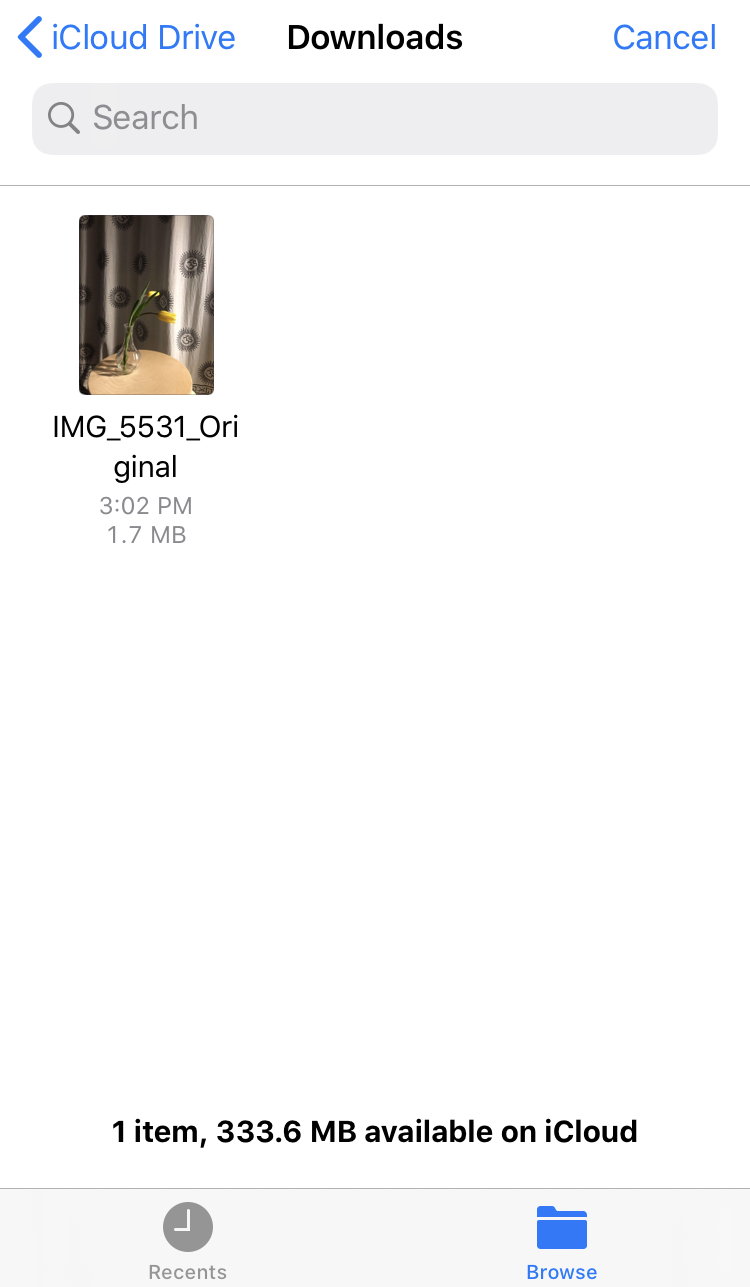
From other apps (Dropbox, iCloud, etc)
Select the app to use from Location in Browse and open the file.
Comments
0 comments
Article is closed for comments.